How to Export a SpeedX Trip as GPX and Keep Your Travel Route
To export a SpeedX trip as GPX, open the saved trip in Trip Log, tap GPX, wait for the file to be prepared, then tap the share icon to save it to Files. GPX export and import require SpeedX Pro. These steps apply to the iPhone and iPad app.
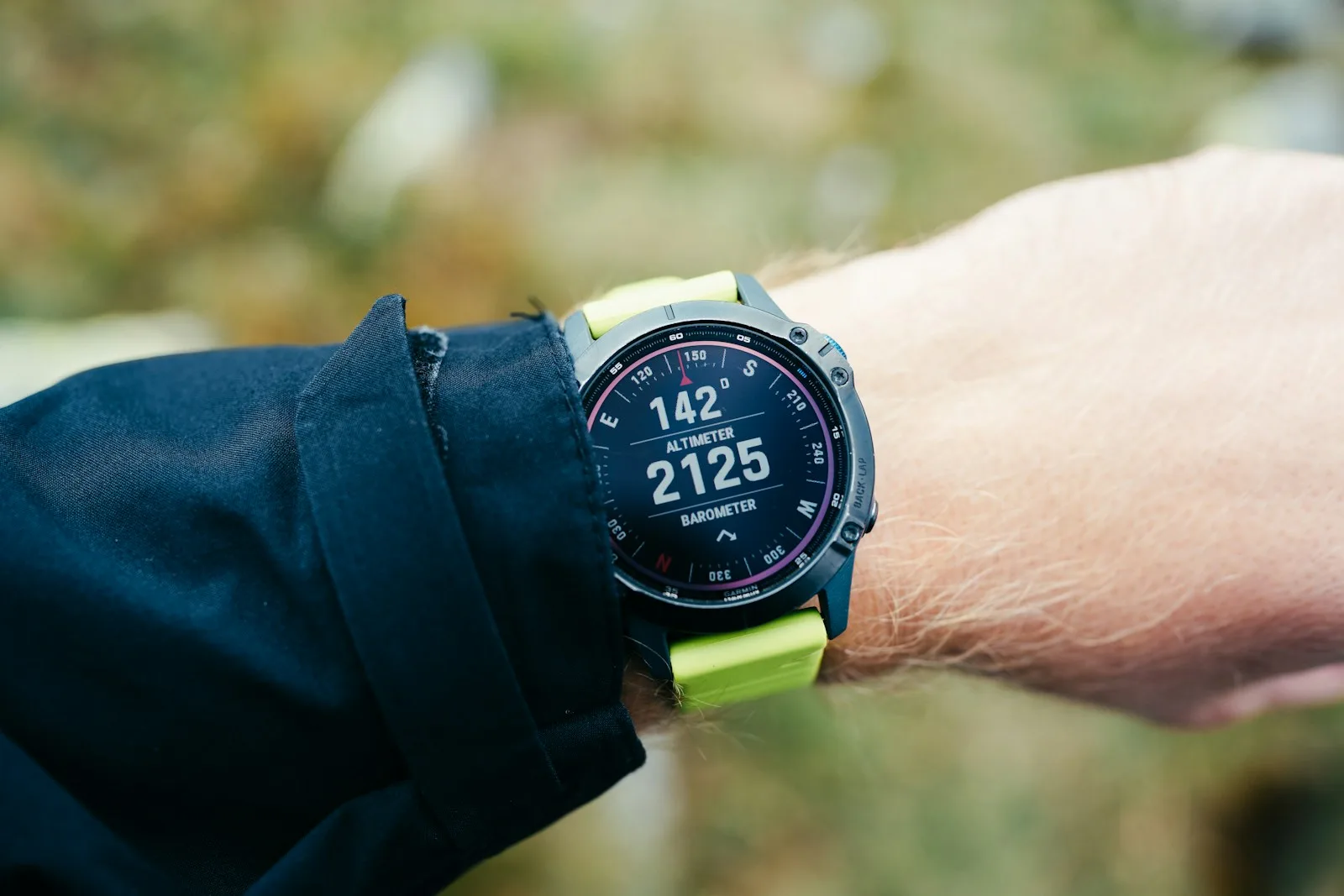
A holiday walk can be worth keeping even when you were never trying to set a pace: the riverside detour, the small streets after lunch, the climb to a viewpoint. A GPX file gives you a copy of that recorded route to open later or send to someone else.

Vitaly Gariev / Unsplash · License
What are you saving?
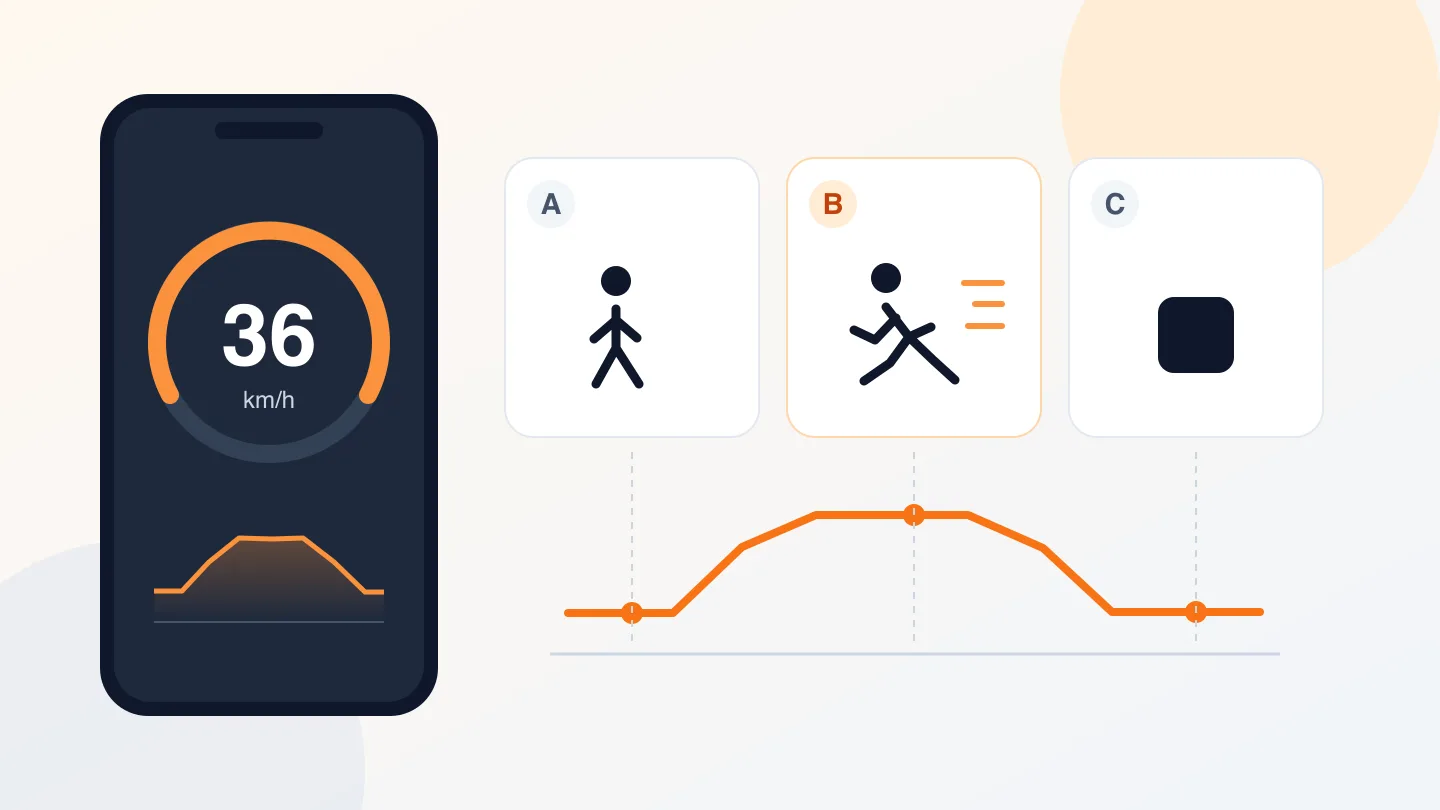
Think of GPX as a file containing points along your outing. SpeedX exports the recorded positions, times and altitude, plus available speed and direction readings. Another app can use those points to draw your route.
Keep your photos and notes alongside it if you want a fuller travel memory. The GPX is a route copy; it does not contain your photo album, every app setting or a complete backup of your SpeedX history.
Export your saved trip from SpeedX
- Open Trip Log and choose the outing you want to keep. Check the date and route so you export the right trip.
- Tap GPX in the trip's top toolbar. This is the file export control; the separate Share button opens the trip-card sharing screen.
- Wait for preparation to finish. The GPX control becomes a share icon: a square with an arrow pointing upward.
- Tap that icon and choose Save to Files in the iOS share sheet. Choose a folder you can find again, in iCloud Drive or on your device, then save.
- Find the saved
.gpxfile in Files. You can give it a recognizable name such asKyoto-afternoon-walk.gpx.
The SpeedX App Store description also lists trip recording and GPX import/export. If Pro access is required, follow the app's upgrade prompt before exporting. An outing without recorded location points cannot supply a route file.
Open the file and check the route
Open the free Float GPX Editor, choose Import GPX and select your saved file. On a computer, you can also drag the file onto the editor.
Check that the start, finish and the part you care about are present. You might recognize the park loop or the street where you stopped for lunch. GPX processing happens in your browser; loading the map background needs a network connection. The editor works without a SpeedX installation or account.
Keep the original export in a safe folder before making changes. For a trip you want to retain on another device, copy the file there too and check that it opens.
Keep just the part you want to share
Suppose you recorded a museum walk and forgot to stop before the taxi ride back. You can make a shorter copy for friends:
- In the editor, select the track and set the start and end of the section you want to keep.
- Choose Keep range. Check that the walk remains and the unwanted beginning or ending is gone.
- Select the track for export, choose Export GPX, then Selected objects. Hiding an item on the map does not exclude it from a file.
- Wait for preparation, click Download GPX and save a separate copy. Reopen that copy to check it before sending.
The trimming guide explains selection and splitting in more detail. Editing the exported copy does not change the saved trip inside SpeedX.
Use an edited copy on your phone
If you want to view an edited track in SpeedX, put the downloaded file on your iPhone or iPad, open Trip Log, tap the import icon at the top and select it. This also requires Pro. Files move by download and manual import; opening the product website or scanning its QR code does not transfer a route.
Check the result after importing. SpeedX joins segments within each track and fills missing point times, so edited or incomplete files can produce different statistics. Keep the original for comparison; the companion guide explains the limits.
Before sharing any route file, check for your home, hotel, private stops and other items left in the file. Removing a short section alone does not guarantee anonymity. A route from last summer is also a record of that day; use current maps to check access before following it again.